
How to use Linkage
Linkage is the most effortless method of using InsightIQ to allow creators to grant consent and access to their data on creator platforms. You can read more about the benefits and use cases of Linkage in our dedicated use case guide.
On this page, we will discuss in detail how to use Linkage. Let's get started!
General steps
There are 2 general steps involved in working with Linkage:
Generating an account connection link and sharing it with the creator
Getting the creator's data after they've successfully connected
Now both of these steps could be achieved in multiple ways. These are described in their respective sections below.
Generating link
Links can be generated in two ways, with no code as well as with low code.
No code link generation
Sign up for InsightIQ (or log in if you already have an account).
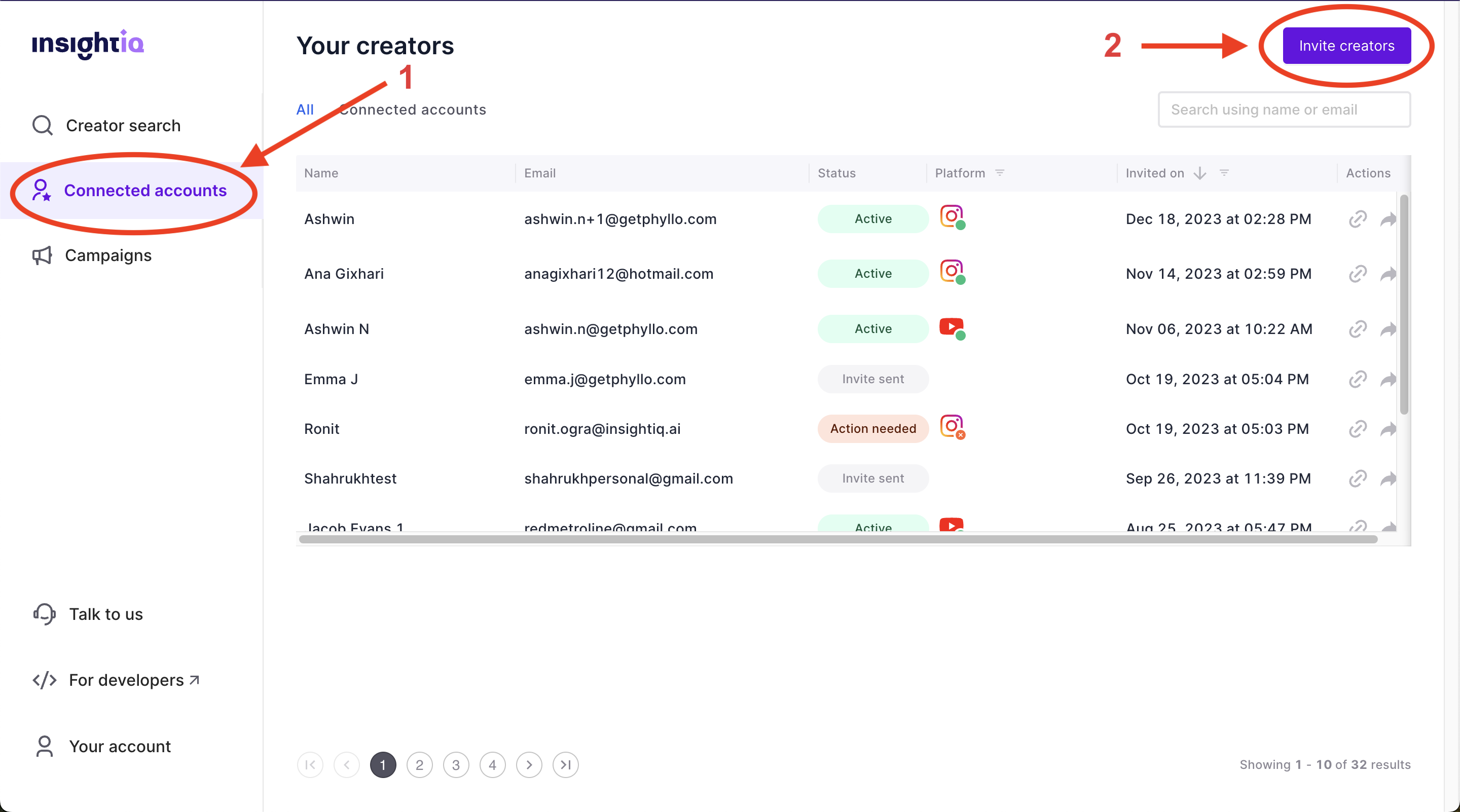
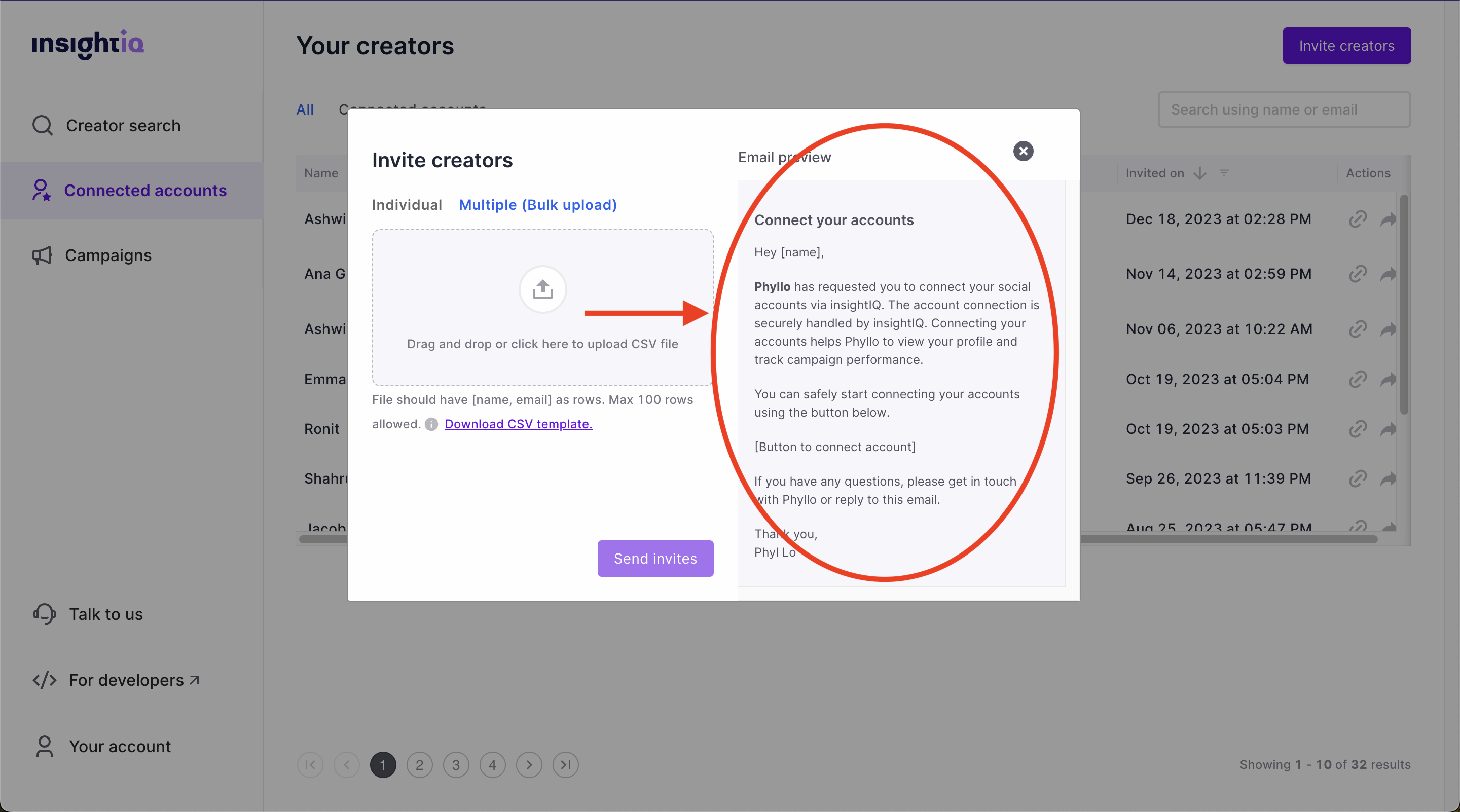
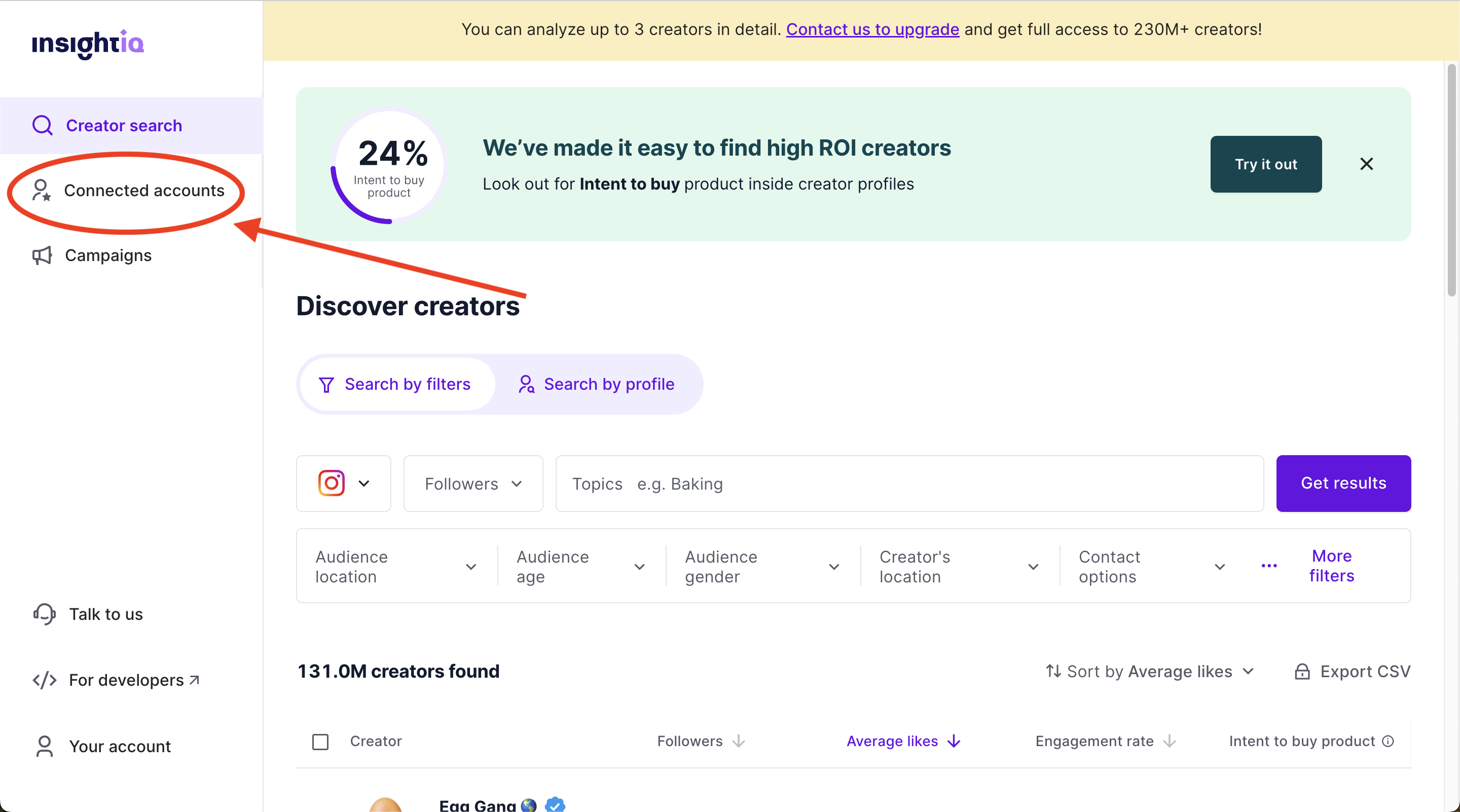
Click on "Connected accounts" on the left menu, and then click "Invite creators" at the top right.
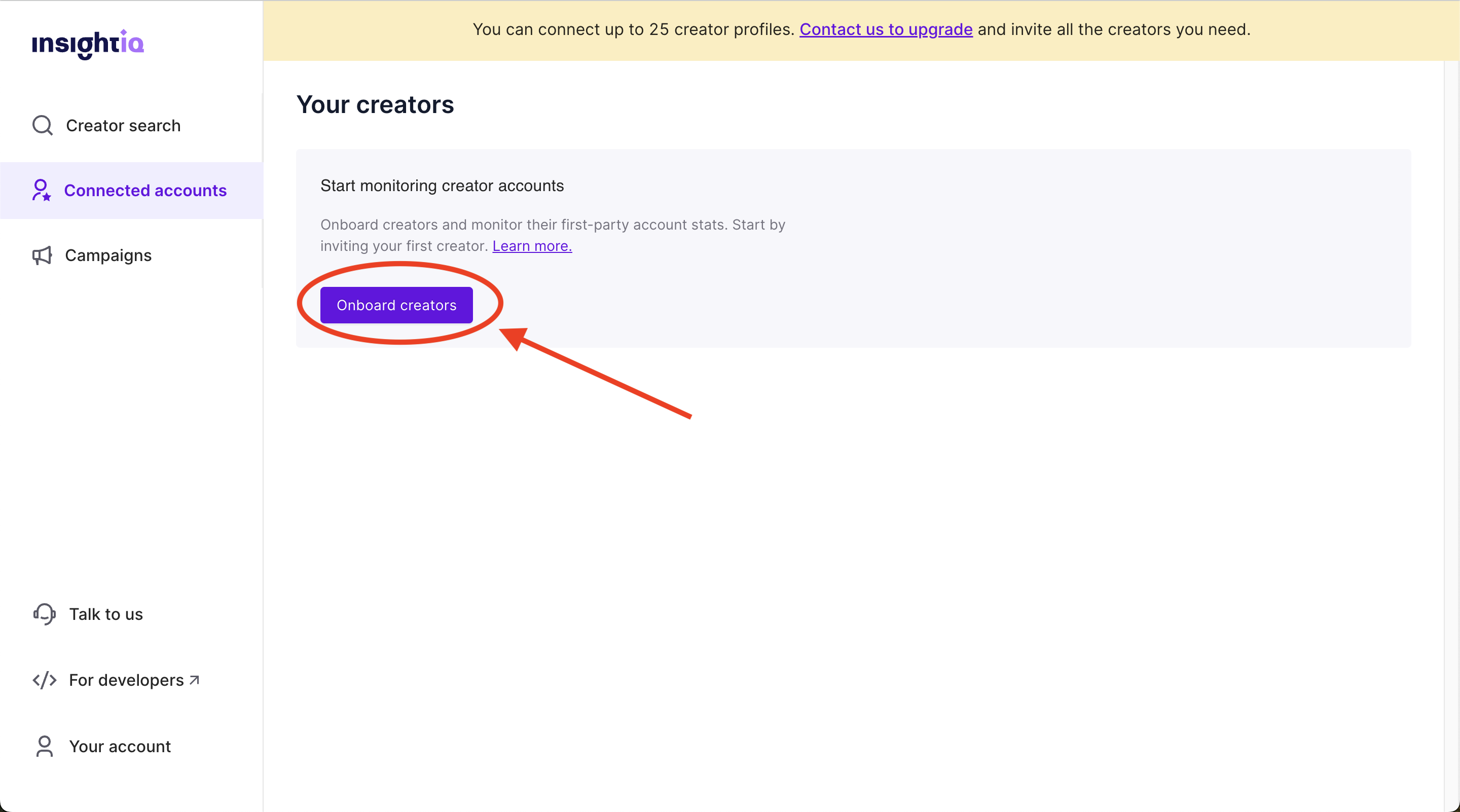
In case you haven't onboarded a creator before, first need to click "Onboard creators" and then click on "Invite creators".
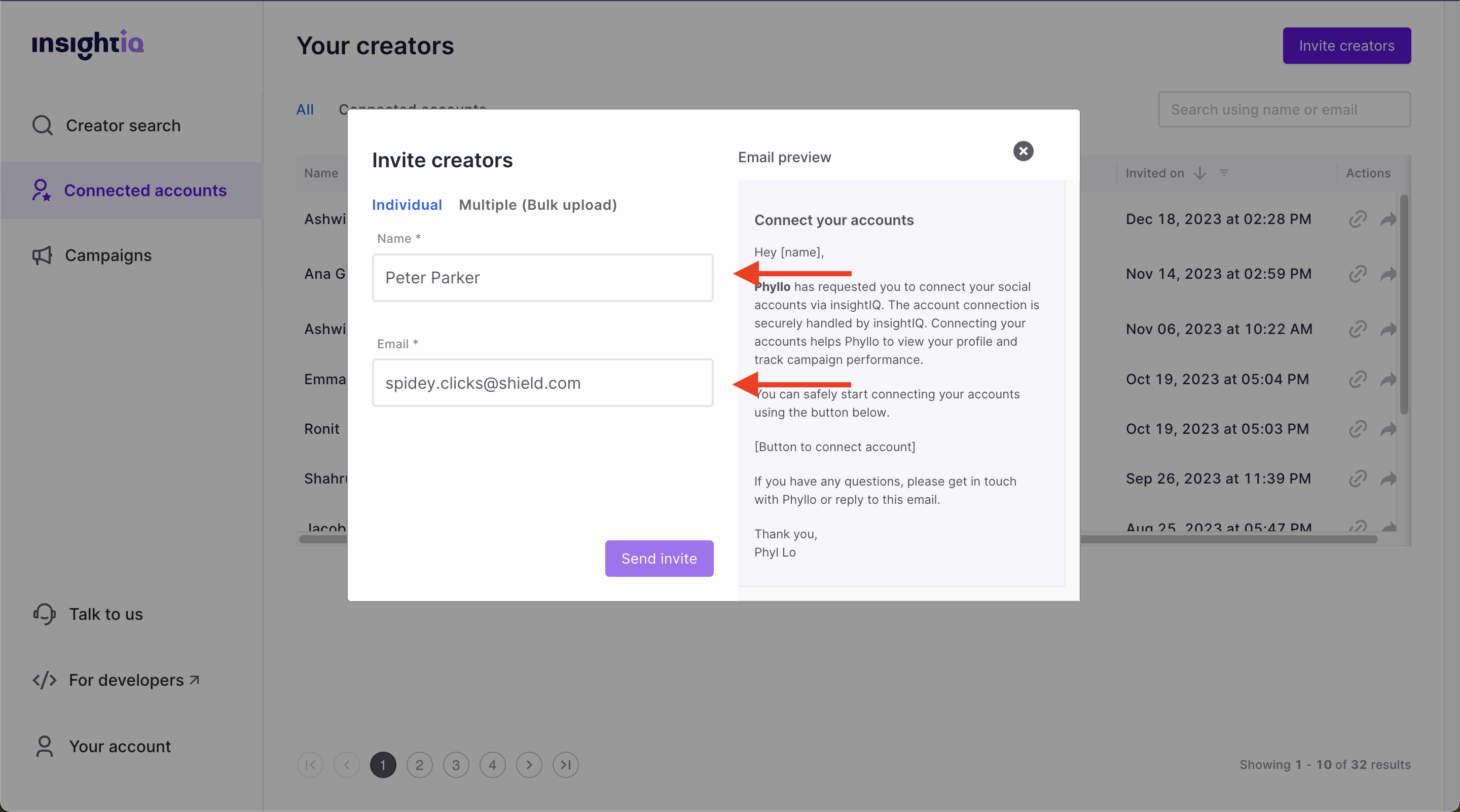
Enter the creator's name and email ID in the panel that appears next.
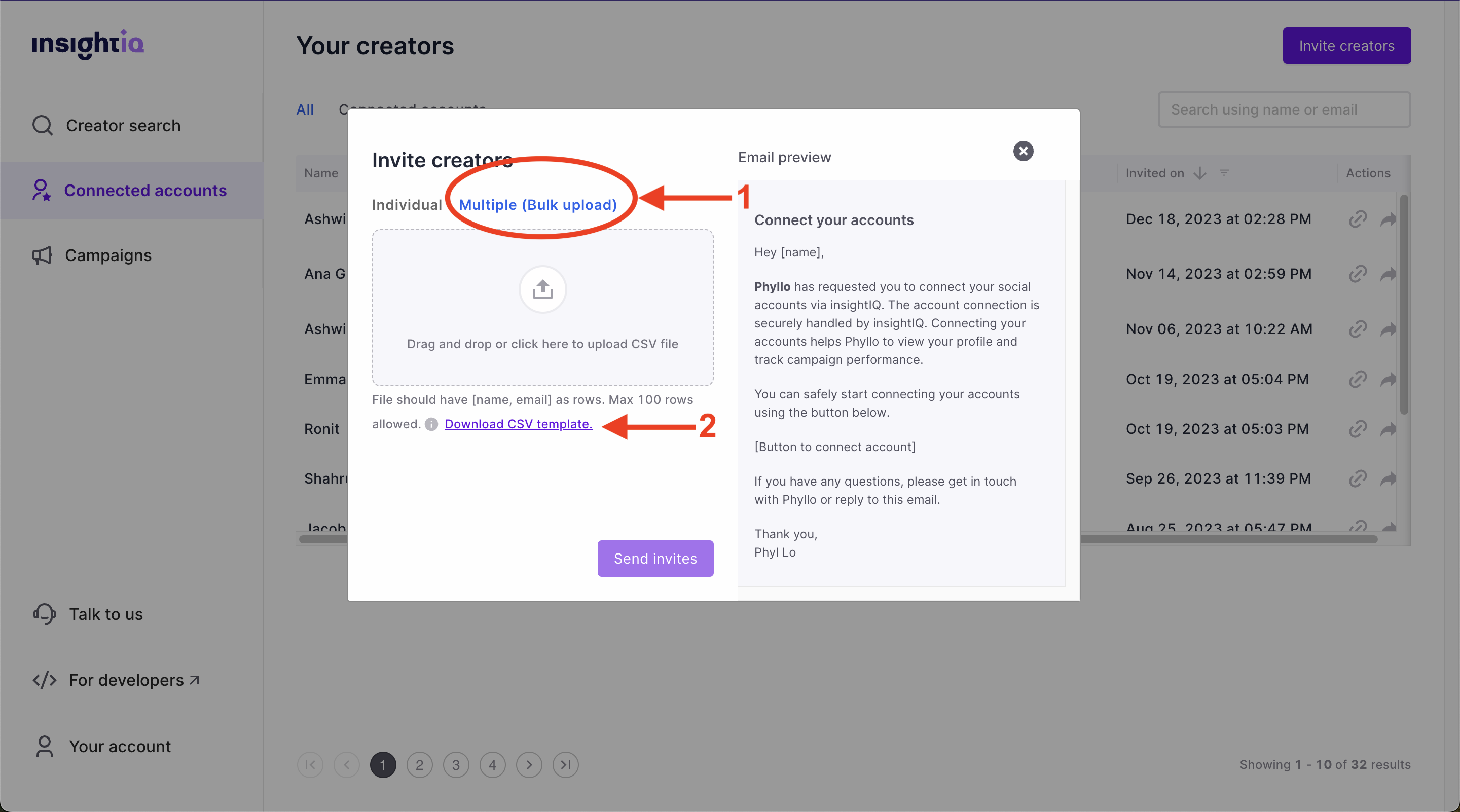
Or if you want to send out a bulk campaign, click on "Multiple (Bulk upload)" and download the CSV template. Fill it in and upload it back.
Click on "Send invite". InsightIQ will send an email to the creator as per the template shown in the box.
Low code link generation
Sign up for InsightIQ (or log in if you already have an account).
Click on the "For developers" link in the bottom part of the left menu.
Select "API credentials" from the left menu on the developer dashboard to access your "Client ID" and "Secret".
Use the create a connection link request to create a unique connection link for a creator by passing the creator's
nameand a uniqueexternal_id.You'll get a
microsite_urlin the response along with a uniqueinvite_idand theexternal_idyou passed to the API.Now you can send this URL to the creator using your own communication channels. InsightIQ will not use its communication channels to send out links generated via API.
A few notes about the links generated using the API:
Only one
external_idcan be associated with one link.The link will not expire.
If the API is called with the same
external_idagain, the API returns the same link that was generated for thatexternal_idpreviously.To add a name, logo and brand color on the microsite, the request would need to be made to the InsightIQ tech team separately.
You can maintain the status of the accounts that were connected via the link using the
external_id.
Accessing creator data
Again, as with link generation, there are no code and low code ways of accessing a creator's data once they've connected their accounts. You can pick any one of these regardless of what method you choose for generating links.
No code data access
Log in to your IsightIQ account.
Click on "Connected accounts" on the left menu.
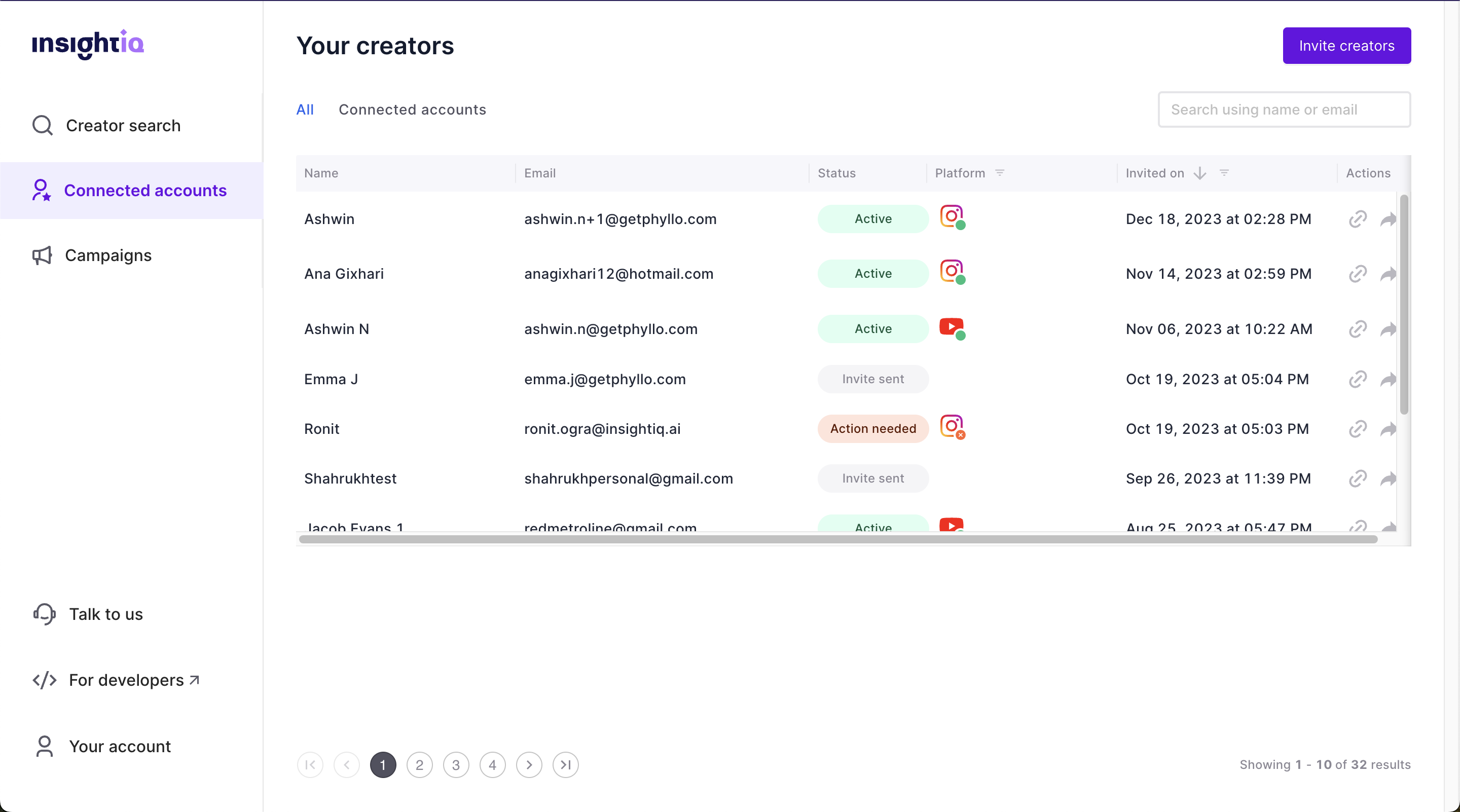
You'll find your list of invites and against each invite, you'll find the connection status.
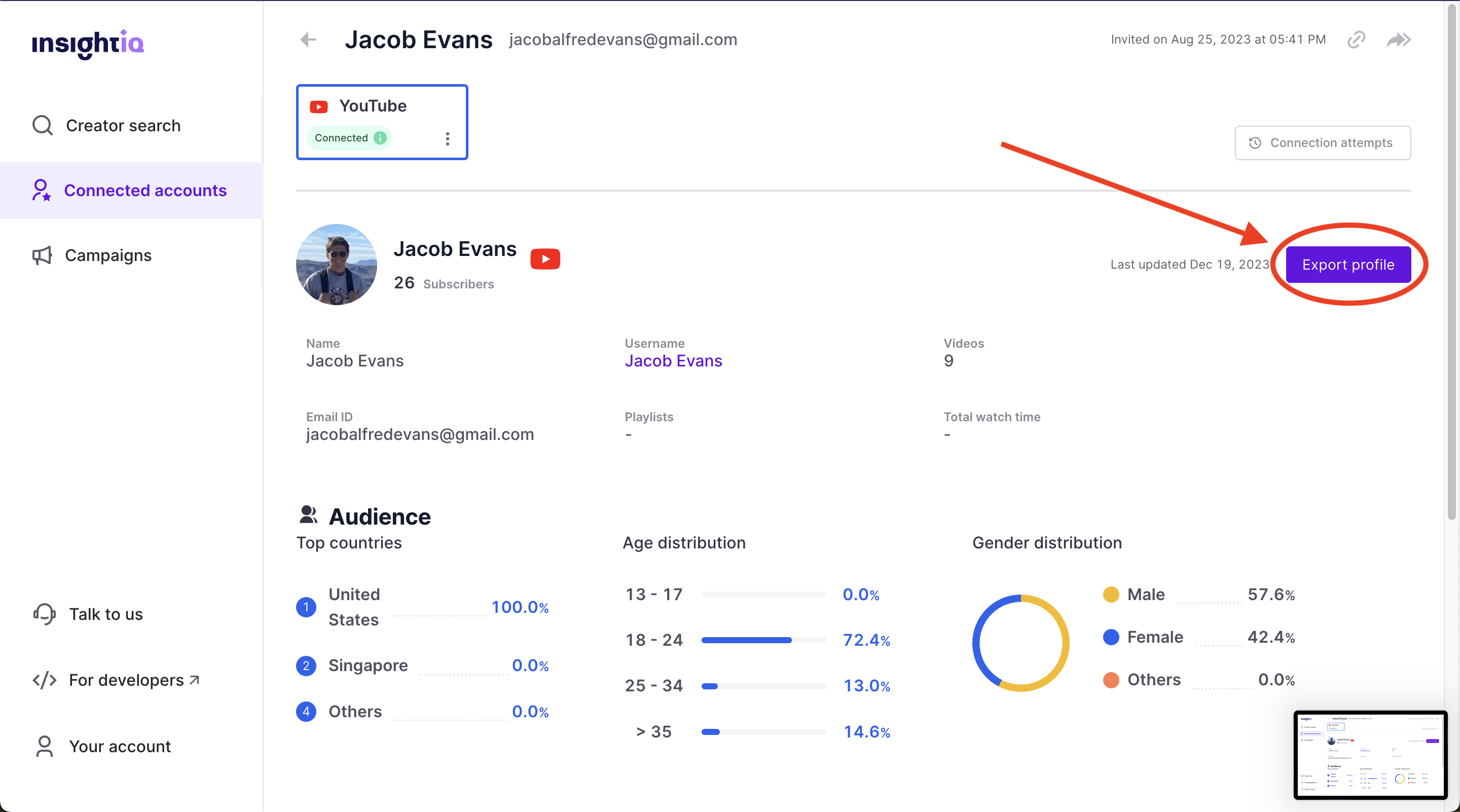
For the "Active" connections, you can click on that row and see the detailed information about the creator.
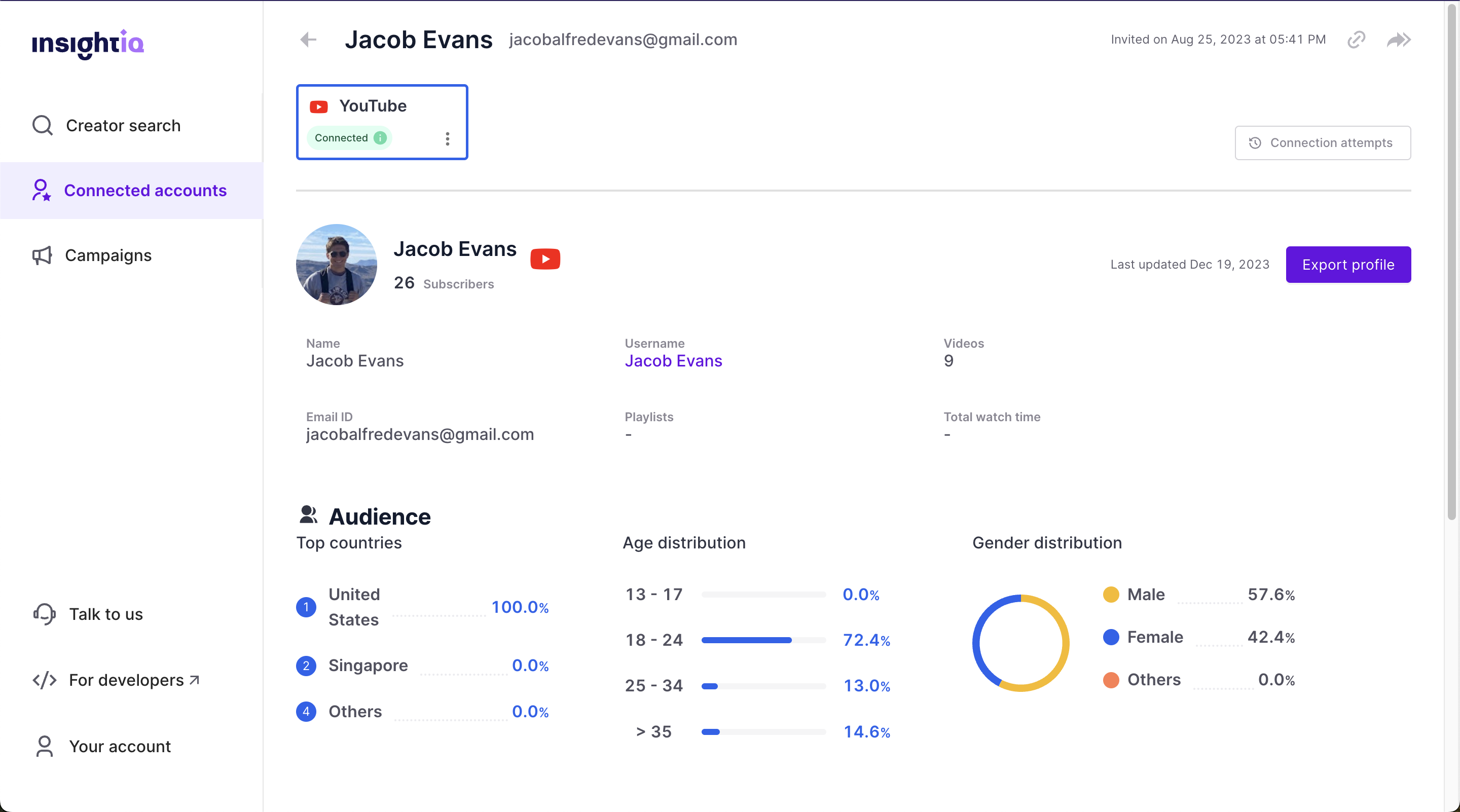
You can even click the "Export profile" button to export all creator data as CSV.
Low code data access
Log in to your IsightIQ account.
Click on the "For developers" link in the bottom part of the left menu.
Select "API credentials" from the left menu on the developer dashboard to access your "Client ID" and "Secret".
Use the InsightIQ APIs like retrieve accounts, retrieve a profile, retrieve all contents, etc. to get access to the creator data. These can be helpful to build automation around this data, even if you are not going for a full tech integration.
Let us know at [email protected] if you face any difficulties using Linkage and we'll help you out.