
Publishing Content
InsightIQ believes in helping developers to create end-to-end solutions for their customers. While our APIs simplify "reading" data from creators’ social accounts, we also recognize the need for streamlined "write" APIs to enable content publishing. That’s where our Publish APIs come in—offering a complete solution for building social media management tools. Here’s how you can use them.
Publish
To publish content using InsightIQ's Publish APIs, follow these steps:
Step 1: Connect the Creator's Account
For new creators, prompt them to connect their account through InsightIQ. Refer to our Quickstart Guide for setup instructions. Ensure you include PUBLISH.CONTENT as one of the product names when creating the SDK token.
For existing creators, you'll need to generate a new SDK token with an additional product name, PUBLISH.CONTENT and have them reconnect their account to grant publishing permissions.
Creators may see permission prompts indicating that InsightIQ will publish on their behalf. This can be scary, sometimes, if the creator doesn't know what they are doing and why. To ensure clarity, follow these best practices. These are heavily derived from the excellent Human Interface Guidelines prescribed by Apple.
Educate the creator: Before initiating the connection flow, explain the process, why these steps are needed, and what permissions they will be granting.
Request appropriate permissions: Only request necessary permissions when they are required. For example: Request only the
IDENTITYduring onboarding, addENGAGEMENTpost-onboarding to display data, includePUBLISH.CONTENTonly when the creator intends to publish via your app. This phased approach may involve additional login steps but improves clarity and more informed connection conversions.
Step 2: Upload the content with a publicly accessible URL
Once the creator has authorized content publishing via InsightIQ, you can begin data processing in the background. You would need to save the media files of the content to a server, CDN, or storage service (e.g., Amazon S3) with a publicly accessible URL. This is an essential step. All platforms require these URLs to be unauthenticated to ingest and process the media.
Follow the platform-specific guidelines to ensure media content is not rejection.
Note: For additional security, you can use signed URLs to make media files accessible only via a time-bound, uniquely generated signature. However, we recommend against this to ensure platforms can process the media files and retry uploads without interruptions.
Step 3: Publish content via InsighIQ
To publish content, call InsightIQ’s Publish API. Provide the following details in your request:
account_id: The creator’s account where the content will be published.type: Specify the type of the post based on the platform (e.g., image, video, tweet).Additional Parameters: Parameter include but not limited to the content title, description, and an array of media items.
Publishing is an asynchronous process. The API response will include a publish ID and additional parameters, including a record of your request payload.
Step 4: Track publishing status
To track the publishing status, subscribe to the CONTENTS.PUBLISH_SUCCESS, CONTENTS.PUBLISH_FAILURE and CONTENTS.PUBLISH_READY webhooks. These webhooks would be called when the publishing process completes at the platform end.
These webhooks deliver the Publish ID for which the processing has been completed. Alternatively, use the Check Publish Status API to manually retrieve the publishing status. However, we recommend relying on webhooks for real-time updates instead of polling.
Publish success
When the publish action is successful, the API returns a few parameters under published_info. Here is what they mean:
content_id: Unique ID of the published content item in the InsighIQ system.url: Platform URL of the published content.media_url: Direct media URL of the content item on the platform.thumbnail_url: Thumbnail URL of the content item on the platform.published_at: Publishing timestamp of the content item on the platform.platform_content_id: Unique content ID on the platform.
Publish failure
Check the Handling errors section below.
Publish Ready
Some platforms, such as TikTok, do not allow direct publishing. Instead, content is uploaded and made available for the creator to take further steps. In these cases, the response will not include published_info or platform_error.
To proceed, inform the creator about the next steps based on the Platform-specific guidelines for these platforms.
Fetch engagement and other content-related data
You can track engagement for content published via the Publish APIs using the content_id from the published_info.
Step 1: Connect the Creator's Account
This step is the same as any account connection, ensure that the ENGAGEMENT product is activated by passing it in the SDK token API and then connecting the creator's account using that token.
Step 2: Retrieve the content ID of published content
Once the content items are published, you can retrieve the content_id from the published_info in the response of the Check Content Publish Status API.
Step 3: Check the engagement data using Engagement APIs
Use the Retrieve a content item API to access engagement metrics and media details for the published content
You can also subscribe to the CONTENTS.ADDED and CONTENTS.UPDATED webhooks for continuous updates about this and other content items of the creator's account.
Retry policy
The retry flag in the publish request allows you to enable automatic retries for failed publishing attempts. Here's how it works:
Retries work asynchronously.
Retries are triggered only for technical or connection errors between InsightIQ and the platform.
If the platform rejects your request (e.g., due to invalid media format), retries are not attempted, and the
CONTENTS.PUBLISH_FAILUREwebhook will be triggered.Transparent Handling: You won’t receive failure notifications during retry attempts. The
CONTENTS.PUBLISH_FAILUREwebhook is only sent if all retries fail or if the platform rejects the request outright.Up to 3 Retries will be performed after the initial failure (4 attempts total).
Retries occur at 60 seconds, 5 minutes and 6 hours after failure.
The default value for the retry flag is false to avoid unexpected behavior. We recommend setting the retry flag to true for most use cases, unless you are publishing something time sensitive.
Handling errors
When the publish action is unsuccessful, the Check content publish status API returns a few parameters under platform_error. Here is what they mean:
type: The type of the error.error_code: A generic code identifying the issue.message: A specific, human-readable explanation of why the publish request failed.
Out of these parameters, the message offers the most specific and actionable insight into the cause of the error. Error reasons can vary by platform, review this message to understand the issue, implement a fix, or inform the creator about next steps.
To minimize errors, follow the platform-specific guidelines closely to ensure compatibility with each platform’s publishing requirements.
Platform-specific guidelines
To ensure successful publishing, follow the guidelines and requirements for each supported platform.
Additional education: Instagram Creator accounts are not supported.
Rate limiting: Accounts are limited to 25 API-published posts within 24 hours. Carousels count as a single post.
File format restrictions: JPEG is the only image format supported. Extended JPEG formats such as MPO and JPS are not supported.
Platform-specific type restrictions: Stories are not supported. Publishing to Instagram TV is not supported.
Encoding: The hashtag symbol (
#) must be HTML URL-encoded %23 in captions.
Additional requirement - creator education
Instagram Business accounts connected to a Page that requires Page Publishing Authorization (PPA) cannot be published to, until PPA has been completed.
A user may be able to perform tasks on a Page that initially does not require PPA but later requires it. In this scenario, the user would not be able to publish content to their Instagram Business account until completing PPA. Since there's no way for you to determine if an app user's Page requires PPA, we recommend that you advise your users to preemptively complete PPA.
Image Specifications
Maximum file size: 8 MB.
Image file format: JPEG.
Image size:
Minimum width: 320
Maximum width: 1440
Minimum aspect ratio: 4:5.
Maximum aspect ratio: 1.91:1.
Color space: sRGB. Images using other color spaces will have their color spaces converted to sRGB.
Video Specifications
Maximum file size: 100 MB.
Duration: at least 3 seconds and at most 60 seconds.
Video file format: MOV or MP4 (MPEG-4 Part 14), no edit lists, moov atom at the front of the file.
Video size:
Maximum columns (horizontal pixels): 1920
Minimum aspect ratio: 4:5.
Maximum aspect ratio: 16:9.
Frame rate: at least 23 FPS and at most 60 FPS.
Video bitrate: VBR, 25Mbps maximum.
Video codec: HEVC or H264, progressive scan, closed GOP, 4:2:0 chroma subsampling.
Audio bitrate: 128kbps.
Audio codec: AAC, 48khz sample rate maximum, 1 or 2 channels (mono or stereo).
Reel Specifications
Maximum file size: 1 GB.
Duration: at least 3 seconds and at most 15 mins.
Video file format: MOV or MP4 (MPEG-4 Part 14), no edit lists, moov atom at the front of the file.
Video size:
Maximum columns (horizontal pixels): 1920
Aspect ratio: at least 0.01:1 and at most 10:1, but Instagram officially recommends 9:16 to avoid cropping or blank spaces.
Frame rate: at least 23 FPS and at most 60 FPS.
Video bitrate: VBR, 25Mbps maximum.
Video codec: HEVC or H264, progressive scan, closed GOP, 4:2:0 chroma subsampling.
Audio bitrate: 128kbps.
Audio codec: AAC, 48khz sample rate maximum, 1 or 2 channels (mono or stereo).
TikTok
Maximum file size: 50 MB.
Duration: at least 3 seconds and at most 60 seconds.
Video file format: MP4.
Video resolution: at least 540p.
Publish process
TikTok doesn't allow publishing content directly to an account's feed. We can only upload the video to the creators' accounts. You should then educate the creator about the next steps, which we are listing below.
Once the upload is completed, TikTok sends a notification to the users in their "Inbox" section, informing them that they have received a video.
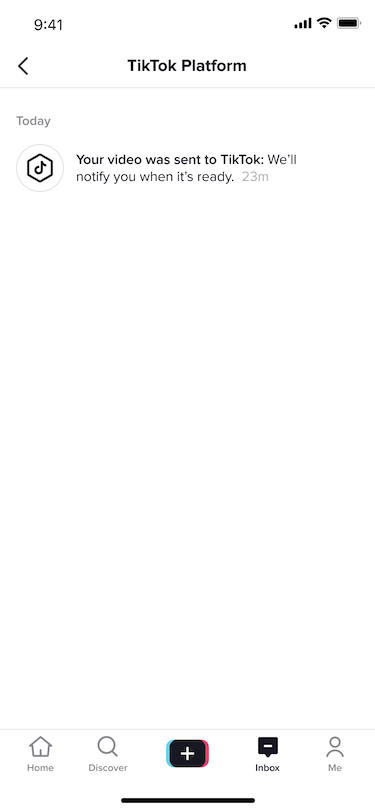
After TikTok completes the processing, they notify the users in their "Inbox" section, informing them that the video is ready and users can edit it if they want. Guide the users to click on this notification and share the video with the appropriate text and/or other edits.
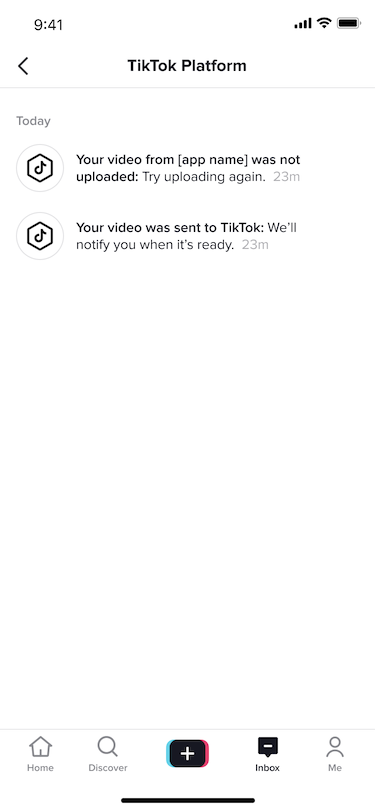
If the video processing fails, TikTok notifies the users about that too. In such a case, you may want to tell the users to return to your app and try the upload again.
YouTube
Media Specifications
Maximum file size: 256 GB.
We are excited to see what you create with InsightIQ Publish APIs. If you have questions, need assistance, or discuss any app ideas, join us on Discord.