Web SDK Integration
Please read these two documents before you get started: getting started with InsightIQ and choosing a flow for the Web SDK.
Overview
Connect SDK is a quick and secure way to connect work platforms in your web apps, via desktop browsers as well mobile browsers. Connect SDK manages work platform authentication (credential validation, multi-factor authentication, error handling, etc).
To start integration with the SDK, clone one of our sample web repositories listed on this page. They have a sample application, which provides a reference implementation.
Choose a flow
We currently offer two flows on the web - popup based and redirect based. The popup-based flow is a significant improvement in the user experience over the redirect-flow, which is the existing market norm.
Please go through this doc to choose a flow for the Web SDK before proceeding further.
Due to a lot of variability and limitations on in-app browsing experience, we are unable to support the popup flow of the web SDK via in-app browsing. If this forms a large part of your use case or customer experience, you may want to switch to redirect flow or use a smart combination of popup and redirect as fallback. We recommend using popup flow (or our dedicated mobile SDKs in case of native apps) as much as possible given its clear advantages over redirect. Detailed comparison and advantages can be found on the choosing a flow for Web SDK page. To know more about what is in-app browsing and why these problems occur, you may head to our dedicated page on Mobile In-App Browsing.
Requirements
To get started, you will require a client ID and secret to access the environment. To get your API credentials, please register on our dashboard. APIs must be called only from your server and never from your app / frontend as this is a security issue.
We support all modern browsers on desktop and mobile.
We do not support integrations via WebViews on iOS or Android apps, since they are inherently not as secure as more modern alternatives. Certain platforms, too, block requests coming from a WebView, breaking the whole Connect SDK experience.
Integration - Popup Flow
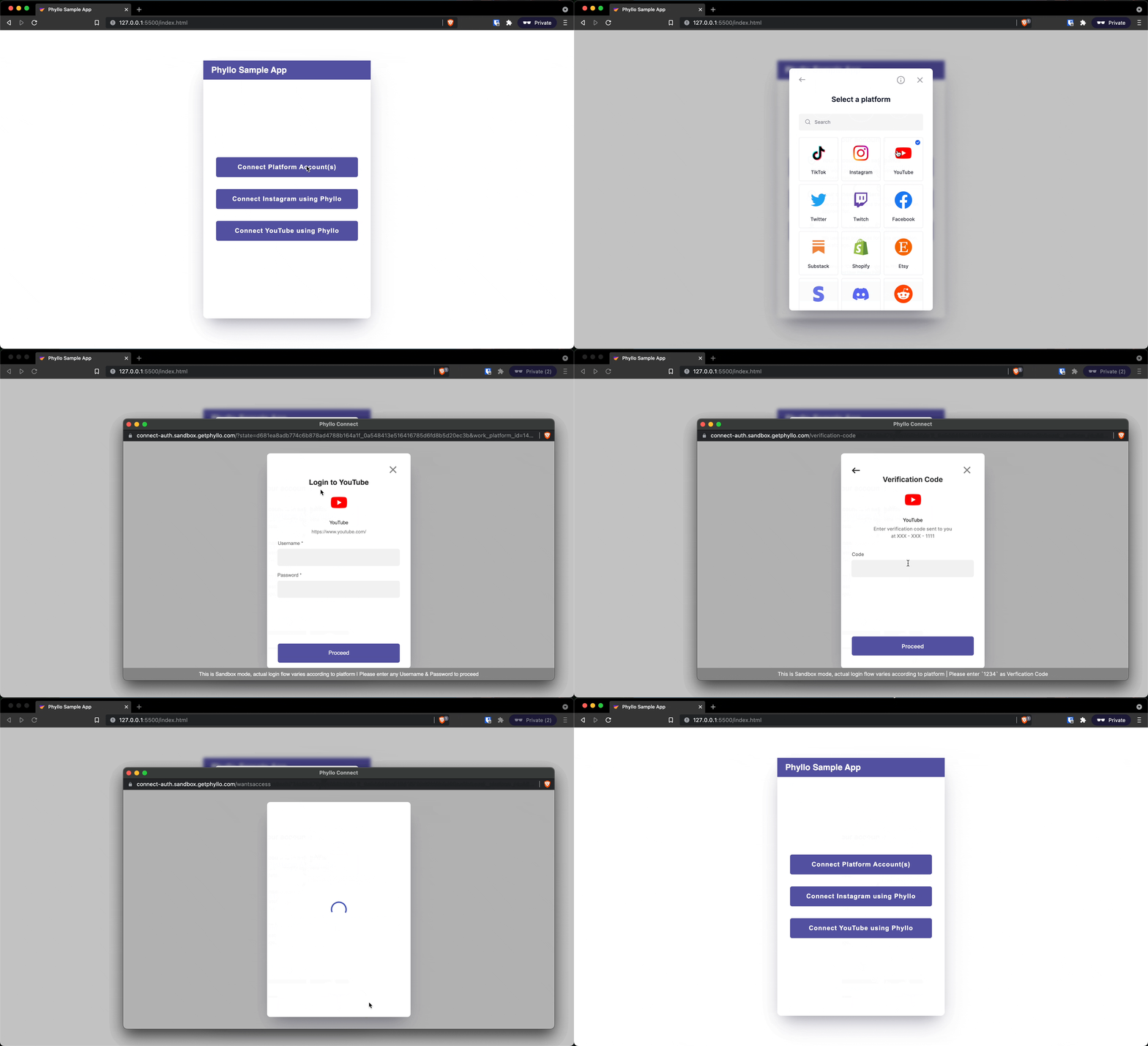
1. Add the Connect SDK to your app
There is no need to install Connect Web SDK locally - you just need to include it in a script tag. This helps you keep your app size small, always loads the latest version from a fast CDN, and avoids the need of bundling or hosting by yourself.
<script src="https://cdn.getphyllo.com/connect/v2/phyllo-connect.js"></script>The older script connect-initialize.js is deprecated and will no longer receive updates. It will also be removed from our CDN in a future update. Please make sure to migrate to phyllo-connect.js, on or before 30 June 2022.
2. Initialize the Connect SDK
Before you initialize SDK, you need to first create an SDK token. The token can be configured to customize Connect SDK flow. To see how to create a new SDK token, see the API reference for create an SDK token API. This token is valid for precisely one week from the time of creation.
3. Create a Connect SDK Configuration
Each time you start the SDK, you will need to initialize the SDK with the token and a few other parameters.
const config = {
  clientDisplayName, // the name of your app that you want the creators to see while granting access
  environment, // the mode in which you want to use the SDK, `staging` or `production`
  userId, // the unique user_id parameter returned by the API when you create a user (see https://docs.insightiq.ai/docs/api-reference/reference/openapi.v1.yml/paths/~1v1~1users/post)
  token,
  singleAccount: false, // (optional) set this to true if you want the creator to be able to connect only one account, this is `false` by default
  redirect: false, // (optional) flag to indicate that you want to use the redirect flow, this is `false` by default
  workPlatformId, // (optional) the unique work_platform_id of a specific work platform, if you want the creator to skip the platform selection screen and just be able to connect just with a single work platform
};

const phylloConnect = PhylloConnect.initialize(config);
Table below lists the options accepted by the config.
Name | Description | Data type | Mandatory |
|---|---|---|---|
clientDisplayName | The name you want to show the users while using the Connect SDK. | String | Yes |
environment | The environment - staging or production - which you want to connect to. | Enum | Yes |
userId |
| String | Yes |
token | Token generated by the create an SDK token API. | String | Yes |
singleAccount | This can be set to | Boolean | No |
redirect | A flag to indicate whether you want to use the redirect flow or not. | Boolean | No |
workPlatformId | Work platform ID (can be fetched from retrieve all work platforms API) of the platform if you want the user to skip the platform selection screen and be restricted to a single pre-decided platform. | String | No |
4. Listen for events
You need to listen for events in your app. These event triggers are listed below.
Event | Trigger | Event name |
|---|---|---|
Account connected | Triggered when the user successfully connects a work platform account | accountConnected |
Account disconnected | Triggered when the user successfully disconnects a work platform account | accountDisconnected |
Token expired | Triggered when the | tokenExpired |
Exit | Triggered when the user exits the SDK | exit |
Connection failure (optional) | Triggered when the user has attempted connecting to the work platform but resulted in a failure | connectionFailure |
Here is how you can do this for your web app.
Set the handlers using the on(<event>, <handler>) method, which takes named events and handler functions as input.
...
phylloConnect.on("accountConnected", (accountId, workplatformId, userId) => {  // gives the successfully connected account ID and work platform ID for the given user ID
  console.log(`onAccountConnected: ${accountId}, ${workplatformId}, ${userId}`);
})
phylloConnect.on("accountDisconnected", (accountId, workplatformId, userId) => {  // gives the successfully disconnected account ID and work platform ID for the given user ID
  console.log(`onAccountDisconnected: ${accountId}, ${workplatformId}, ${userId}`);
})
phylloConnect.on("tokenExpired", (userId) => {  // gives the user ID for which the token has expired
  console.log(`onTokenExpired: ${userId}`);  // the SDK closes automatically in case the token has expired, and you need to handle this by showing an appropriate UI and messaging to the users
})
phylloConnect.on("exit", (reason, userId) => {  // indicates that the user with given user ID has closed the SDK and gives an appropriate reason for it
  console.log(`onExit: ${reason}, ${userId}`);
})
phylloConnect.on("connectionFailure", (reason, workplatformId, userId) => {  // optional, indicates that the user with given user ID has attempted connecting to the work platform but resulted in a failure and gives an appropriate reason for it
  console.log(`onConnectionFailure: ${reason}, ${workplatformId}, ${userId}`);
})
...
Here is a list of reasons with description, that you can receive in the onExit event.
| Description |
|---|---|
BACK_PRESSED | User has pressed the back button. This can happen before or after a connection. |
DONE_CLICKED | User has pressed the "DONE" button in the SDK. This usually happens after a successful connection. |
EXIT_FROM_PLATFORM_SELECTION | User has pressed the cross button ("x") on the top right of the SDK from the screen where they have to select a platform. This can happen before or after a connection. |
EXIT_FROM_PLATFORM_{name of the work platform} | User has pressed the cross button ("x") on the top right of the SDK from the screen where they are shown details about connecting to a platform (after selecting the platform). This can happen before or after a connection. |
EXIT_FROM_CONNECTION_FAILED | User has pressed the cross button ("x") on the top right of the SDK from the error screen where they are shown the error details about connecting to a certain work platform. This can happen after another successful connection to the same platform or another platform. |
Here is a list of reasons with description, that you can receive in the onConnectionFailure event.
| Description |
|---|---|
CONNECTION_ABANDONED | User has abandoned the account connection flow. |
INCORRECT_ACCOUNT_TYPE | User has connected an incorrect account type. |
INADEQUATE_PERMISSIONS | User has granted inadequate permissions. |
5. Open the connection screen
After initialization, the Connect SDK flow can simply be invoked.
phylloConnect.open();On successful account connection, you will also get notified via webhook to your server. Please read more about webhooks here and set them up accordingly.
Debug: check the SDK version
At any point, if you wish to ascertain the version of the SDK that is loaded in your app (for example, to debug), you can use the version method.
console.log(PhylloConnect.version());

// console output
// {
//   "connect_web_sdk_version": "<SemVer string>"
// }
Integration - Redirect Flow
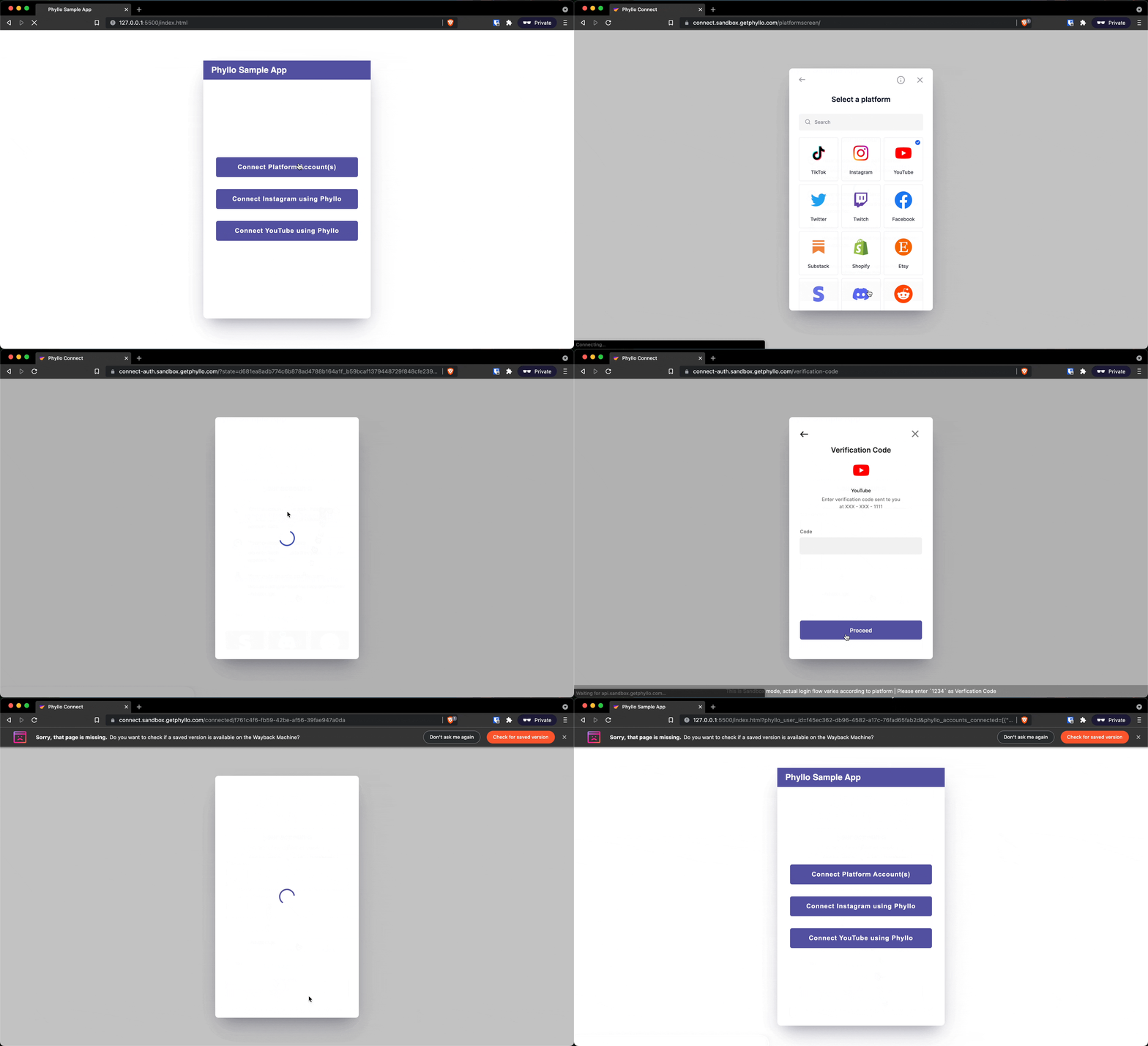
1. Add the Connect SDK to your app
There is no need to install Connect Web SDK locally - you just need to include it in a script tag. This helps you keep your app size small, always loads the latest version from a fast CDN, and avoids the need of bundling or hosting by yourself.
<script src="https://cdn.getphyllo.com/connect/v2/phyllo-connect.js"></script>The older script connect-initialize.js is deprecated and will no longer receive updates. It will also be removed from our CDN in a future update. Please make sure to migrate to phyllo-connect.js, on or before 30 June 2022.
2. Initialize the Connect SDK
Before you initialize SDK, you need to first create an SDK token. The token can be configured to customize Connect SDK flow. To see how to create a new SDK token, see the API reference for create an SDK token API. This token is valid for precisely one week from the time of creation.
3. Create a Connect SDK Configuration
Each time you start the SDK, you will need to initialize the SDK with the token and a few other parameters. Importantly, you need to set the redirect parameter to true along with a redirectURL where the result will be sent.
const config = {
  clientDisplayName, // the name of your app that you want the creators to see while granting access
  environment, // the mode in which you want to use the SDK, `staging` or `production`
  userId, // the unique user_id parameter returned by the API when you create a user (see https://docs.insightiq.ai/docs/api-reference/reference/openapi.v1.yml/paths/~1v1~1users/post)
  token,
  singleAccount: false, // (optional) set this to true if you want the creator to be able to connect only one account, this is `false` by default
  redirect: true, // flag to indicate that you want to use the redirect flow, this is `false` by default
  redirectURL, // the URL to which the creator should be redirected after completing their actions on the Connect SDK
  workPlatformId, // (optional) the unique work_platform_id of a specific work platform, if you want the creator to skip the platform selection screen and just be able to connect just with a single work platform
};

const phylloConnect = PhylloConnect.initialize(config);
Table below lists the options accepted by the config.
Name | Description | Data type | Mandatory |
|---|---|---|---|
clientDisplayName | The name you want to show the users while using the Connect SDK. | String | Yes |
environment | The Phyllo environment - staging or production - which you want to connect to. | Enum | Yes |
userId | Phyllo | String | Yes |
token | Token generated by the create an SDK token API. | String | Yes |
singleAccount | This can be set to | Boolean | No |
redirect | A flag to indicate whether you want to use the redirect flow or not. | Boolean | No |
redirectURL | The URL you want to redirect to when using the redirect flow. | String<URL> | Yes, with |
workPlatformId | Work platform ID (can be fetched from retrieve all work platforms API) of the platform if you want the user to skip the platform selection screen and be restricted to a single pre-decided platform. | String | No |
4. Open the connection screen
After initialization, the Connect SDK flow can simply be invoked.
phylloConnect.open();5. Get results as query parameters on the redirect URL
You need to parse the query parameters on the redirect URL to get the results from the SDK. These parameters and values form the part of the URL after the ? symbol, and are URL encoded. These parameters are listed below.
Parameter | Meaning | Type |
|---|---|---|
phyllo_user_id | User ID for which the Connect SDK is initialized | string |
phyllo_accounts_connected | Array of account connection objects, which contain an account ID and a work platform ID | Array[] of Objects with format |
phyllo_accounts_disconnected | Array of account disconnection objects, which contain an account ID and a work platform ID | Array[] of Objects with format |
phyllo_exit_reason | Reason why the SDK has been exited | string |
Any account information received under the phyllo_accounts_connected or phyllo_accounts_disconnected will be the latest status of that account.
Here is a list of reasons with description, that you can receive in the phyllo_exit_reason parameter.
| Description |
|---|---|
BACK_PRESSED | User has pressed the back button. This can happen before or after a connection. |
DONE_CLICKED | User has pressed the "DONE" button in the SDK. This usually happens after a successful connection. |
EXIT_FROM_PLATFORM_SELECTION | User has pressed the cross button ("x") on the top right of the SDK from the screen where they have to select a platform. This can happen before or after a connection. |
EXIT_FROM_PLATFORM_{name of the work platform} | User has pressed the cross button ("x") on the top right of the SDK from the screen where they are shown details about connecting to a platform (after selecting the platform). This can happen before or after a connection. |
EXIT_FROM_CONNECTION_FAILED | User has pressed the cross button ("x") on the top right of the SDK from the error screen where they are shown the error details about connecting to a certain work platform. This can happen after another successful connection to the same platform or another platform. |
TOKEN_EXPIRED | The token used to initialize the SDK is more than 7 days old. |
On successful account connection, you will also get notified via webhook to your server. Please read more about webhooks here and set them up accordingly.
Debug: check the SDK version
At any point, if you wish to ascertain the version of the SDK that is loaded in your app (for example, to debug), you can use the version method.
console.log(PhylloConnect.version());

// console output
// {
//   "connect_web_sdk_version": "<SemVer string>"
// }